The Magic Behind Terminal Commands - Understanding the PATH Variable

Have you ever wondered how your terminal recognizes commands like ls, cd, or python? The secret lies in an essential environment variable called PATH. This article will unravel the significance of the PATH variable, explaining how it helps your system locate and execute commands. By the end, you'll also learn how to modify the PATH variable to include your own scripts, enhancing your command-line experience.
This tutorial is specifically tailored for Unix-like systems, with a focus on macOS. The principles discussed here apply to other Unix-like systems, such as Linux. If you are using Windows, the concepts are similar, but the implementation differs. For Windows, you can set the PATH variable through the System Properties dialog or using the setx command in Command Prompt or PowerShell.
Prerequisites
- Basic understanding of terminal commands
- macOS operating system
- Terminal application
Understanding the PATH Variable
Let's start with a simple question: What is the PATH variable, and why is it important?
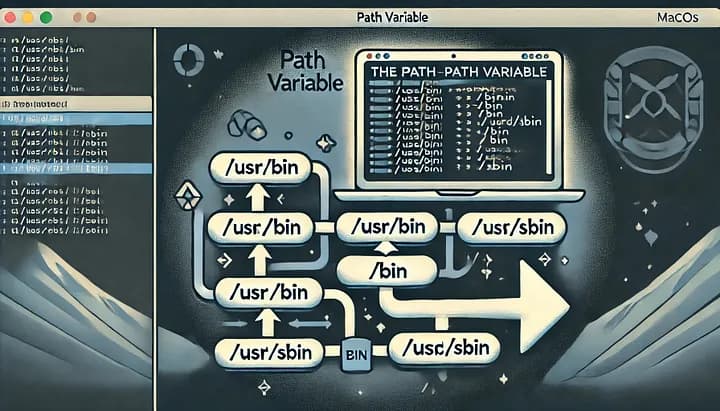
The PATH variable is an environment variable that tells the shell which directories to search for executable files. When you type a command into the terminal, the shell looks through the directories listed in the PATH variable to find the corresponding executable file. If the file is found, the command runs; if not, you'll get an error message, most of the times something like bash: command not found: <some-invalid-command>
We can view the PATH variable by opening up a terminal and running the following command:
echo $PATHThis command will output a colon-separated list of directories. Here's an example output:
/usr/local/bin:/usr/bin:/bin:/usr/sbin:/sbinEach of these directories contains executable files that you can run from the terminal. For instance, the ls command is located in /bin, and that's why you can run it from anywhere in the terminal.
Why Update the PATH Variable?
When you install new software or create your own scripts, you might need to update the PATH variable so that the terminal can recognize these new commands. For example, if you install a tool like Python, Node.js or Postgresql using a package manager, it often recommends adding a specific directory to your PATH.
Let's say you installed Postgresql@15 via homebrew, which is a popular package manager for macOS. After installation, it will request you to update the PATH variable as shown below. Without this update your system will not recognize Postgresql related commands.
export PATH="/opt/homebrew/opt/postgresql@15/bin:$PATH"This command appends /opt/homebrew/opt/postgresql@15/bin to the existing PATH variable. However, this change is temporary and will be reset when you close the terminal. To make the change permanent, you need to add the export command to your shell's configuration file. For macOS, if you are using the default shell (zsh), you can add it to the .zshrc file:
echo 'export PATH="/opt/homebrew/opt/postgresql@15/bin:$PATH"' >> ~/.zshrcIf you are using bash, you would add it to the .bash_profile or .bashrc file:
echo 'export PATH="/opt/homebrew/opt/postgresql@15/bin:$PATH"' >> ~/.bash_profileThis command will add the export statement to your configuration file, which will update the PATH variable each time a terminal session is opened. So, you will be able to run Postgresql related commands.
Creating Your Own Scripts
Now that you understand how to update the PATH variable, let's create a simple script and add it to a directory included in your PATH.
- Create a new directory for your scripts:
mkdir ~/myCustomScripts- Add this directory to your
PATHand run thesourcecommand to reload the configuration file in the current session.
echo 'export PATH="$PATH:~/myCustomScripts"' >> ~/.zshrc
source ~/.zshrc- Create a file named
greetand open it with your preferred code editor, here I will use nano for the sake of simplicity:
touch ~/myCustomScripts/greet
nano ~/myCustomScripts/greet
First add the shebang #!/bin/bash at the top of the file, which means that this file should be executed as a bash script. Then, add a simple bash script to greet and give the current date in the specified format:
#!/bin/bash
echo "Hello, today is $(date +%d.%m.%y)"
At this point, the terminal will recognize the command. But if you attempt to run it, you will get permission denied: greet error. Because, the file is not an executable file yet. Let's do this next.
- Make the script executable:
chmod +x ~/myCustomScripts/greet- Run your script from anywhere in the terminal:
greetYou should see the output:
Hello, today is 12.07.24Keep in mind that the above command is maybe useless and created for just demonstration purposes. You can create more complex commands to meet your specific needs and usecases.
Conclusion
The PATH variable is a fundamental part of the terminal's functionality, enabling it to locate and execute commands. With a grasp of the PATH variable, you can enhance your command-line operations by adding new tools and custom scripts to your workflow. This skill opens up a world of possibilities for personalizing and optimizing your terminal usage on your system.